
DeepSeek not working? At 16:34 UTC on October 9, 2026, the official DeepSeek status page reported that all listed systems were operating normally. That does not prove every account, device, network or region is unaffected. DeepSeek monitors Chat, Search, File Upload and model-specific API services separately, so first identify the exact route and symptom. If an official incident is active, preserve your work and wait for DeepSeek to restore the affected component; clearing your browser or reinstalling the app will not repair a provider-side outage.
Independent-site disclosure: This is an independent troubleshooting guide and is not affiliated with DeepSeek.
Last verified: October 9, 2026, 16:34 UTC. Service status can change after publication. Open the official status page before following device-level fixes.
Testing note: This guide separates current official documentation from general diagnostic steps. No outage, error, app crash or successful repair was fabricated for this article.
DeepSeek status right now
At the verification time above, DeepSeek displayed “Everything is running smoothly” and “All systems are operating as expected.” The status page listed chat-related services, File Upload, Search and separate API services as operational.
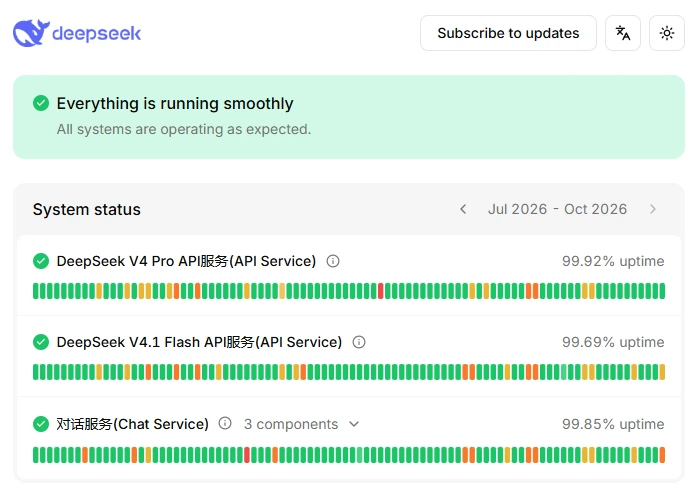
| Component | Status at verification | What a problem could affect |
|---|---|---|
| Chat Service | Operational | Opening chats, sending prompts, streaming responses and ordinary conversation |
| Search Service | Operational | Live web search, current-information retrieval, links and search-supported answers |
| File Upload Service | Operational | Attaching, uploading and processing documents or images |
| API services | Operational | First-party developer requests to the currently listed hosted models |
DeepSeek’s incident history shows why component-level diagnosis matters. Some resolved events have affected Search alone, while others have affected web chat and API services together. A failed attachment therefore does not automatically mean text chat is down, and a third-party API failure does not prove that the official consumer app is unavailable.
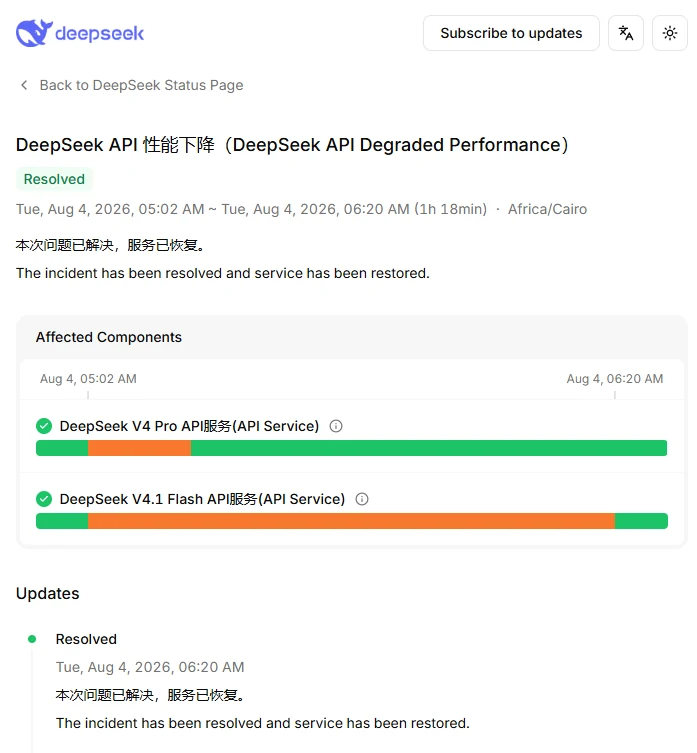
If the status page now shows an incident that began after this article was verified, follow the live incident page instead of the static status note above.
The first 60-second check
- Copy unsent work. Save any important prompt, draft or error text before refreshing, signing out or clearing data.
- Record the exact message. “Server busy,” a blank response, login failure and HTTP
429require different fixes. - Note the time and timezone. This helps you compare the failure with an official incident and create a useful support report.
- Open the official status page. Check the specific Chat, Search, File Upload or API component.
- Verify the route. Test the official DeepSeek web application, not only a bot, extension, API gateway or unaffiliated app.
- Send one minimal test. Start a fresh chat and send a short text-only request without a file or optional Search tool.
- Check general connectivity. Confirm that another ordinary website loads.
- Compare one variable. Try another browser, the official mobile app, another device or another trusted network.
- Follow the matching symptom section below. Do not perform every fix indiscriminately.
Do not begin by deleting all browser data, reinstalling the app, repeatedly clicking Regenerate, disabling security controls or downloading an unofficial DeepSeek application.
Which DeepSeek route is failing?
| Observable symptom | Likely route | First check | Do not assume |
|---|---|---|---|
| The official website will not load | Consumer Web Chat | Chat status, browser and network | The API and mobile app are also down |
| The mobile app crashes or freezes | Official iOS or Android app | App update, device storage and service status | Reinstallation is the first or safest fix |
| “The server is busy. Please try again later.” | Usually consumer chat, but confirm the route | Official status and a fresh text-only chat | It is definitely an API rate limit or definitely a global outage |
| Ordinary chat works but Search fails | Search Service | Search component on the status page | All DeepSeek services are unavailable |
| Text works but a file will not upload | File Upload Service or file-specific issue | File Upload status and a small non-sensitive test file | The model cannot answer text prompts |
| Login or registration fails | Account and identity flow | Official login page, exact message and current FAQ | The account is permanently banned |
| An API request returns an HTTP code | First-party API or selected provider | Exact status code, key, balance, model and endpoint | The consumer website is also failing |
| DeepSeek fails only inside another app or bot | Third-party integration | That provider’s status, key, credits and model route | DeepSeek’s official service caused the failure |
| A downloaded model fails locally | Local runtime | Model files, runtime logs, RAM, VRAM and drivers | An official DeepSeek outage is responsible |
| DeepSeek Harness fails | Harness host, model provider, plugin or permissions | Harness version, provider, workspace and plugin logs | Ordinary DeepSeek Chat uses the same execution path |
DeepSeek says “The server is busy. Please try again later”
The message is a symptom, not a complete diagnosis. It can appear during a provider incident, temporary capacity pressure, a failed conversation state or a problem limited to a tool such as Search or file processing. It is not automatically equivalent to API HTTP 429 or 503.
If the official status page shows an incident
- Save the prompt and any uploaded source material locally.
- Open the incident details and confirm which components are affected.
- Subscribe to official updates when the status page offers that option.
- Do not clear cookies, reinstall the app or restart network hardware to repair a confirmed provider outage.
- Do not rely on an unofficial restoration estimate.
- Retry after DeepSeek moves the incident to monitoring or resolved.
If no official incident is listed
- Start a new conversation rather than repeatedly regenerating the same failed turn.
- Send one short text-only prompt.
- For diagnosis, omit attachments and optional tools that are not required for the test.
- Wait briefly, then make one controlled retry.
- Try the official mobile app or another current browser.
- Test a different trusted network.
- If the message persists across official platforms and networks, collect evidence and contact support.
Do not use DeepSeek API pricing “peak hours” as a schedule for consumer chat availability. Billing periods are not proof of consumer-server congestion.
DeepSeek website is not loading
- Confirm the official address. Use chat.deepseek.com.
- Check Chat Service status. A confirmed provider incident should be handled by waiting, not browser repair.
- Refresh once. Avoid continuous reloads that make diagnosis harder.
- Open a private window. If the site works there, stored site data or an extension is a likely local factor.
- Try another current browser. This separates a browser-profile problem from an account or network problem.
- Temporarily disable one relevant extension. Focus on script blockers, privacy extensions, content filters and browser automation. Do not disable every security control globally.
- Check system date and time. An incorrect clock can interfere with secure login and certificate validation.
- Test another trusted network. If DeepSeek works on mobile data but not Wi-Fi, investigate the router, DNS, captive portal, firewall or organizational policy.
- Clear DeepSeek-specific site data only if needed. Preserve unsent text first; this action signs you out and can remove local state.
- Escalate if it persists. Report the browser, operating system, exact error, time and tests already completed.
A page that loads but produces a wrong answer is not a connectivity failure. Verify the answer, clarify the prompt or start a fresh conversation instead of applying browser repairs.
DeepSeek app is crashing, freezing or will not open
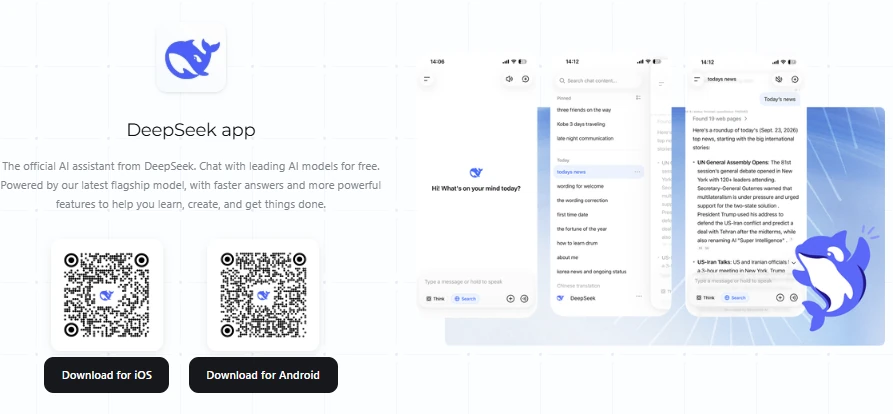
Install only the official DeepSeek app through the DeepSeek download page, Apple App Store or Google Play. Unaffiliated applications can use DeepSeek’s name or models without being operated by DeepSeek.
- Check the official status page before changing the device.
- Force-close the app and open it once.
- Confirm that another app or website can reach the internet.
- Switch between Wi-Fi and mobile data for diagnosis.
- Open the official store listing and install any current update.
- Restart the device.
- Check free storage space and normal operating-system health.
- Review only the permission related to the failing feature, such as photo or file access.
- Sign out and back in only after preserving unsent work and confirming the original login method.
- Use a cache-only clearing action where the operating system offers one.
- Reinstall only as a late step, after confirming that you can log back in and accepting that unsynced local state may be lost.
Do not install a modified APK, cloned app or unofficial “DeepSeek Pro” client as a troubleshooting shortcut.
If you are unsure which installer to use, check the official DeepSeek download options before reinstalling; keep your account access and unsent work safe.
DeepSeek is not responding, stays blank or gets stuck generating
A stuck response can result from a service incident, interrupted streaming connection, a damaged conversation state, an unusually large request, a file that is still processing or a tool that failed.
- Copy the original prompt and preserve any source text.
- Check Chat status and any relevant Search or File Upload component.
- Stop the generation if the current interface provides a stop control.
- Open a fresh conversation.
- Send a short text-only diagnostic prompt.
- If that succeeds, shorten the original request or divide it into smaller stages.
- Add the file or optional tool back only after ordinary text works.
- Try another official platform or trusted network.
- Report the failure if it reproduces across fresh chats, official platforms and networks.
An explicit policy or safety refusal is not a broken connection. Do not attempt to bypass safeguards. Rewrite a legitimate request so that its lawful, safe purpose and required boundaries are clear.
DeepSeek login, registration and account problems
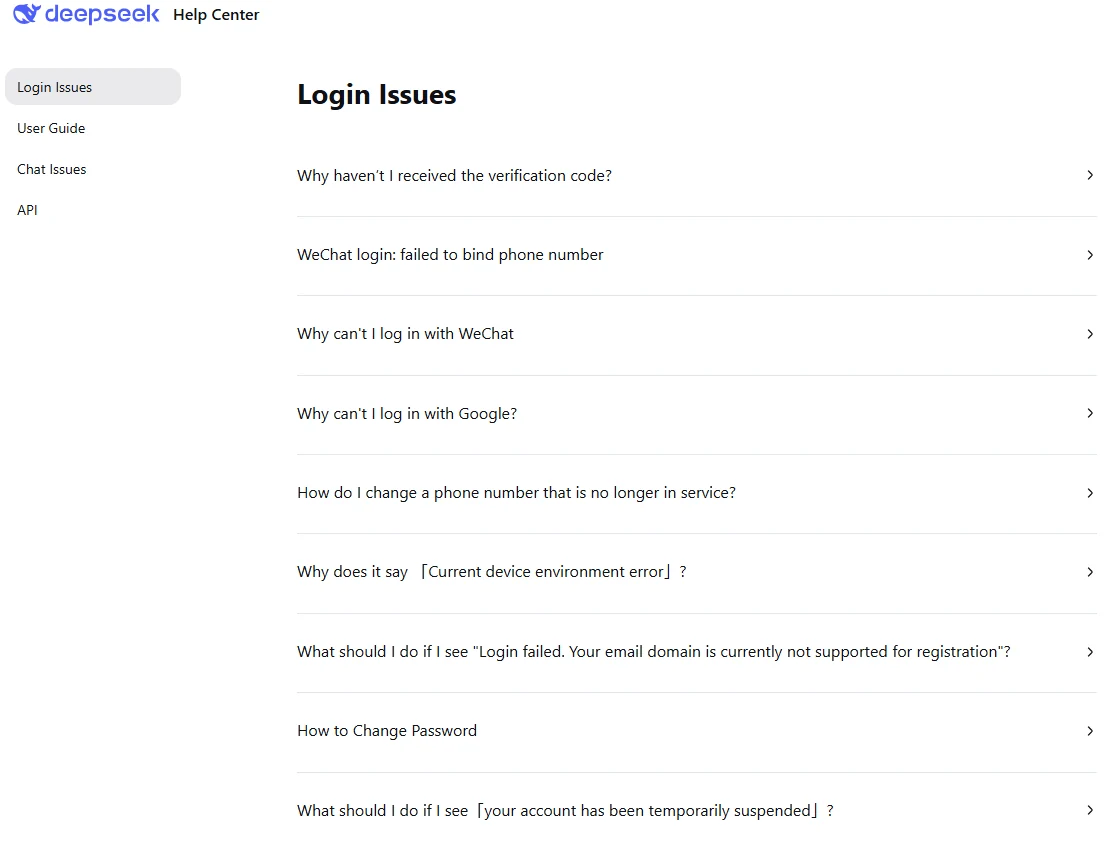
The current official DeepSeek FAQ lists verification-code, Google login, unsupported email-domain, abnormal device-environment and temporarily suspended account issues as separate cases. Use the exact message rather than treating every sign-in problem as a server outage.
Verification code not received
- Confirm that the email address or phone method was entered correctly.
- Check Spam, Junk and corporate-mail quarantine folders.
- Wait for the current request to complete before requesting another code.
- Use the newest code; an earlier code can become invalid after a resend.
- Check whether registration or account services are involved in a current official incident.
- Ask a corporate mail administrator whether automated DeepSeek mail is filtered.
- Use only a login or registration method currently offered on the official DeepSeek page.
- Contact support if the problem continues; never send your password or verification code.
Google or Apple login fails
- Confirm that the option is currently displayed for your region and account.
- Use the same identity method originally associated with the account.
- Try a current standard browser rather than an embedded browser inside another application.
- Allow the login popup and required identity-provider cookies for that attempt.
- Disable only the extension that appears to block the identity flow.
- Do not share an identity-provider token or browser session cookie with support.
“Your email domain is currently not supported for registration”
This message means the current registration system has rejected that domain. It does not prove a global outage. Do not use disposable mail or attempt to evade an account rule. Use another legitimate sign-in method currently offered by DeepSeek, or contact support for account-specific guidance.
“The current device operating environment is abnormal”
- Use the official app or a current unmodified browser.
- Disable browser automation, debugging proxies and unknown extensions for the test.
- Confirm that the system date, time and timezone are correct.
- Try a normal trusted network without an unusual proxy chain.
- Do not attempt to bypass fraud, identity or anti-abuse checks.
- Report the exact message if it persists on a normal official environment.
Account temporarily suspended or disabled
Do not create replacement accounts to evade enforcement. Preserve the exact notice, account email, date and time, then use the official Contact Us route or consumer support email. Never provide a password, full identity document or verification code unless an authenticated official process explicitly requires a limited item for account recovery.
Forgotten password or lost account access
Use the official password-recovery page. DeepSeek’s Terms direct users who lose account access to the official recovery procedure and require users to protect passwords and verification codes.
DeepSeek Search is not working
Search is a separate service. Ordinary chat can remain available while current-information retrieval, citations or searched links fail.
- Check the Search component on the official status page.
- Confirm that ordinary text chat works in a fresh conversation.
- Confirm that the current interface shows Search as available for your account and platform.
- Start a new chat and run one simple current-information query.
- Temporarily disable a content blocker only if it appears to prevent search results or links from rendering.
- Try the official web app and official mobile app separately.
- If Search is under an official incident, continue with non-search tasks or wait for restoration.
Do not claim that DeepSeek searched the web unless the interface shows that the Search function actually ran. A fluent answer can still be based on model knowledge rather than current browsing.
DeepSeek file upload is not working
File Upload is also monitored separately. Do not copy API file limits into the consumer workflow, and do not rely on an old article for current size, page, format or daily-quota claims.
- Check the official File Upload component.
- Confirm that ordinary text chat works.
- Open the file locally and confirm that it is not damaged.
- Use a copied, non-sensitive working file rather than the only original.
- Remove encryption or password protection only when you are authorized and it is safe to create a separate working copy.
- Start a fresh conversation and upload one small file type currently accepted by the interface.
- Wait for the visible upload and processing state to finish before sending the question.
- Test another current browser or the official mobile app.
- Test another trusted network.
- If only one file fails, export a clean authorized copy rather than repeatedly uploading the same damaged file.
- Contact support if several small supported files fail across official platforms and networks.
Do not upload a confidential contract, medical record, identity document, customer database or production secret merely to test whether File Upload works.
A successful upload does not prove that every page, table, chart or footnote was parsed correctly. Verify important information against the original file.
DeepSeek chat history is missing
- Confirm that you are signed into the same account and used the same login method.
- Refresh once or reopen the official application.
- Check the account on another official platform.
- Do not clear site data or reinstall before checking whether the history appears elsewhere.
- Record missing chat titles, approximate dates and the last time they were visible.
- Contact support if the same account lacks the history across official platforms.
Do not assume that locally unsent or unsynced content can be recovered. Preserve important outputs outside the chat service when they matter.
Network, VPN, DNS and workplace restrictions
DeepSeek’s Terms state that availability and features can vary by jurisdiction. A legal, institutional or regional restriction is different from a temporary outage.
- If DeepSeek works on mobile data but not Wi-Fi, check the router, captive portal, DNS, firewall or network administrator.
- If a VPN or proxy is already active, disable it temporarily for diagnosis when doing so is lawful and permitted.
- Do not use a VPN to evade law, employer policy, school controls or service restrictions.
- Do not disable antivirus, managed firewall or endpoint-security controls globally.
- On a workplace or school network, ask the authorized administrator whether DeepSeek domains or AI services are blocked.
- Do not treat a government-device restriction as proof that all consumers in the country are unable to use the service.
- Use only the official website, official app stores and official download page.
If the official web application is unavailable in your jurisdiction or account, follow the current legal and product rules rather than an old country list from a third-party blog.
DeepSeek API not working
The consumer chat and first-party API are separate routes. A free chat account does not mean the API has balance, and an API error does not prove that the consumer application is down. Use the current official DeepSeek API error documentation.
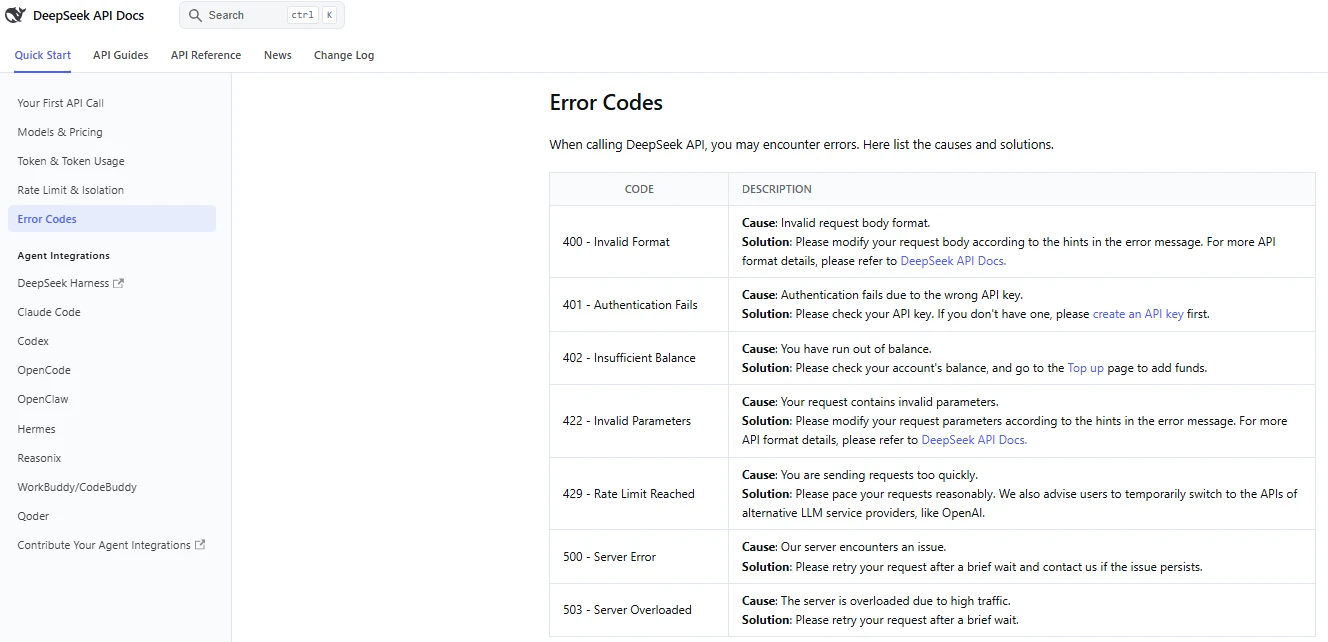
| HTTP status | Official meaning | Correct first action | Retry unchanged? |
|---|---|---|---|
400 | Invalid request format | Read the response body and correct the request structure. | No |
401 | Authentication failed | Check the API key, authorization header and provider endpoint. | No |
402 | Insufficient balance | Check the correct DeepSeek Platform account and top up through the official platform if appropriate. | No |
422 | Invalid parameters | Correct the named parameter, value or model capability mismatch. | No |
429 | Requests are being sent too quickly | Reduce concurrency, queue work and retry with bounded backoff. | Yes, after delay |
500 | DeepSeek server error | Record the request details and retry after a brief delay. | Yes, with a limit |
503 | Server overloaded due to high traffic | Wait, check the model-specific API component and retry with bounded backoff. | Yes, with a limit |
API diagnostic order
- Confirm that you are calling the intended provider, not a third-party gateway.
- Confirm the current official Base URL in the API documentation.
- Confirm that the key belongs to that provider and account.
- Check balance.
- Check the current model ID and lifecycle.
- Validate the JSON request and parameters.
- Check request size, context and output limits.
- Reduce concurrency when receiving
429. - Check the relevant API component on the official status page.
- Use jittered, bounded retries only for transient errors.
If the response says that a model is not found, compare the exact model ID with the current first-party model list and change log. Do not copy an old R1, V3 or retired alias from a historical tutorial.
Never paste a full API key into a screenshot, support ticket, chat, repository or public bug report. Revoke it immediately if exposed.
DeepSeek fails only in another app, bot or provider
If DeepSeek works on the official website but fails inside a Telegram bot, browser extension, model marketplace, API gateway or another AI application, the problem may belong to that provider.
- Check the third party’s own status page.
- Confirm its credits, subscription or rate limit.
- Confirm the provider-specific key, endpoint and model name.
- Check whether the provider retired or remapped the model.
- Use that provider’s privacy policy and support route.
- Do not give the third party your DeepSeek web-session cookie or password.
- Do not attribute that provider’s pricing, uptime or data handling to DeepSeek.
DeepSeek Harness or a local model is not working
DeepSeek Harness and local inference require separate diagnosis.
Harness-specific checks
- Record the Harness version and release channel.
- Check whether the local Harness host is running.
- Confirm the model provider, key, endpoint and model ID.
- Confirm that a workspace is selected and permissions allow the requested action.
- Disable the newest or failing plugin in a disposable environment.
- Review sandbox and approval denials rather than weakening all controls.
- Check provider status separately from Harness status.
Local-model checks
- Confirm that all model files are present and intact.
- Confirm runtime and quantization compatibility.
- Check RAM, VRAM, unified memory and storage.
- Check GPU drivers and acceleration logs.
- Lower context, batch size or GPU offload only when appropriate to the runtime.
- Check whether web tools, embeddings or other cloud services are still required.
An official DeepSeek outage normally does not stop fully local inference after the required model and runtime files are already downloaded. It can still affect model downloads, updates or cloud-connected tools.
Should you clear cache or reinstall DeepSeek?
| Action | Use it when | Main consequence |
|---|---|---|
| Refresh once | A page or stream appears temporarily stuck | Can interrupt an unsent or active response |
| Private browsing test | You need to isolate stored site data and extensions | Starts without the normal signed-in browser state |
| Clear DeepSeek-specific site data | The service works in private browsing but fails in the normal profile | Signs you out and can remove local browser state |
| Clear app cache | The official app has a local cache problem and the operating system offers a cache-only action | May require assets to be downloaded again |
| Clear all app data | A late diagnostic step after account access is confirmed | Resets the application and can remove unsynced local state |
| Reinstall | The official app remains broken after status, network, update, restart and cache checks | Requires login again and may remove local state |
None of these actions repairs a confirmed DeepSeek outage. Preserve unsent work and confirm account access before any destructive reset.
When to wait, troubleshoot or contact support
| Decision | Use it when | Best next action |
|---|---|---|
| Wait | An official incident affects your component, or an API returns a confirmed transient 500 or 503 | Preserve work, subscribe to updates and retry after recovery with a limit. |
| Troubleshoot locally | Status is normal and the issue occurs on one browser, device, network, conversation or file | Use the least destructive matching diagnostic branch. |
| Check a third party | The official route works but an external app, provider or bot fails | Use that provider’s status, documentation and support. |
| Contact consumer support | Account access, registration, unexplained suspension, history or a reproducible official-app failure persists | Use Contact Us in the signed-in product or [email protected]. |
| Contact API support | A reproducible first-party API problem persists after correcting the request, account and limits | Email [email protected] without including the secret key. |
| Report a security vulnerability | You found a genuine security flaw rather than an ordinary support issue | Use [email protected] and avoid public disclosure before responsible reporting. |
What to send DeepSeek support
- Exact date, time and timezone
- Country or region when relevant to access
- Official route used: Web, iOS, Android or API
- Operating system and browser or app version
- Login method without sharing credentials
- Exact error text
- A redacted screenshot
- The affected component: Chat, Search, File Upload or API
- What the official status page showed
- Whether it reproduced in a fresh chat
- Whether it reproduced on another official platform or network
- Safe steps already attempted
- For API issues: endpoint, model ID, HTTP status and request ID when available
Never send support your password, full API key, verification code, session token, authentication cookie, payment-card number, confidential prompt or private source file.
Problems that are not necessarily an outage
- A wrong answer: verify sources, clarify the request and try a fresh conversation.
- A policy refusal: do not bypass safeguards; reformulate a legitimate request within the rules.
- A missing feature in one mode: availability can depend on platform, region, account, mode or rollout.
- A third-party bot failure: check that provider rather than assuming DeepSeek is down.
- An unsupported file: a file-specific failure does not prove the service is unavailable.
- An exhausted API balance: HTTP
402is a billing state, not downtime. - A rejected API parameter: HTTP
400or422requires request correction, not repeated retrying. - A local hardware failure: official service status does not diagnose a self-hosted model.
Frequently asked questions
Is DeepSeek down right now?
At 16:34 UTC on October 9, 2026, the official status page reported all listed systems operational. Check the live page again because the result can change after this timestamp.
Why does DeepSeek say “The server is busy”?
The message can be associated with a provider incident, temporary service pressure, a failed conversation or a tool-specific problem. Check the official component status and test one new text-only conversation before changing the device.
How long should I wait before retrying?
DeepSeek does not provide one universal waiting period for every consumer error. During an active incident, follow official updates. Without an incident, wait briefly and make one controlled retry rather than repeatedly submitting the same request.
Why does DeepSeek work on mobile data but not Wi-Fi?
That pattern points toward the Wi-Fi network, router, DNS, firewall, captive portal or organizational policy rather than a global DeepSeek outage. Test another trusted network and ask the authorized administrator where appropriate.
Does clearing browser cache delete DeepSeek chats?
Clearing site data signs you out and removes browser-local state. Do not assume unsent or unsynced material will return. Check the same account on another official platform and preserve important text before clearing anything.
Should I reinstall the DeepSeek app?
Reinstall only after checking service status, force-closing, updating, restarting the device, testing the network and confirming account access. It is a late diagnostic step, not the first fix.
Why does chat work but DeepSeek Search does not?
Search is monitored as a separate service and can fail independently. Check the Search component and confirm that the current interface makes Search available to your account and platform.
Why does text chat work but file upload fails?
File Upload is a separate component, and a particular file can also be damaged, encrypted, unsupported or difficult to process. Check File Upload status, then test one small non-sensitive file that opens normally.
What is the difference between API errors 429 and 503?
DeepSeek documents 429 as requests being sent too quickly and 503 as server overload caused by high traffic. Reduce request pace for 429; for 503, wait and retry with bounded backoff while checking the API status.
Can a local DeepSeek model work during an official outage?
Usually yes when model and runtime files are already available and inference is genuinely local. Downloads, web tools, cloud embeddings, provider fallbacks or remote interfaces can still require online services.
How do I contact DeepSeek support?
For consumer service feedback, use Contact Us inside the signed-in product or email [email protected]. For first-party API support, use [email protected]. Do not include passwords, verification codes, session tokens or API keys.
Sources checked
The following primary sources were checked on October 9, 2026:
- Official DeepSeek Status page
- DeepSeek incident history
- Official DeepSeek web application
- Official DeepSeek download page
- Official DeepSeek FAQ
- DeepSeek Terms of Use
- Official DeepSeek API error-code documentation
- Official DeepSeek API documentation
- DeepSeek API Platform
- Official DeepSeek App Store listing
- Official DeepSeek Google Play listing