
DeepSeek Chat can read an uploaded PDF, summarize its contents, and answer questions about the document. Open the official DeepSeek Chat, attach the PDF using the current upload control beside the message box, wait for the file to finish processing, and then ask a question grounded in the document.
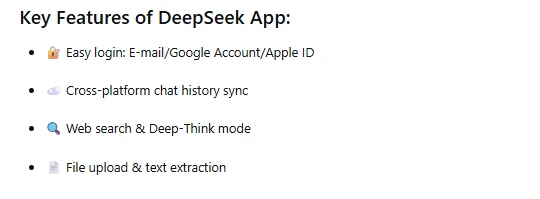
The public DeepSeek Chat page describes document uploads and file reading, while the official DeepSeek app announcement lists file upload and text extraction. You do not need a developer API key, Python, or a third-party PDF service for this consumer-chat workflow.
Last checked: October 9, 2026. The authenticated interface was not available for direct inspection during this review, so control labels and account-specific limits are described cautiously rather than presented as fixed.
Before uploading your PDF
Open the document on your computer before sending it to DeepSeek. Confirm that it is the intended version, that it opens without errors, and that you are authorized to share its contents.
A clean, text-based PDF usually provides the most dependable starting point. Try selecting a sentence in your PDF viewer. If you can highlight and copy the words, the document probably contains a usable text layer. If every page behaves like one large image, it is likely a scanned or image-only PDF and may need optical character recognition, or OCR.
Do not upload passwords, API keys, unredacted identity documents, confidential client files, medical records, employee data, or material you are not permitted to disclose. DeepSeek’s Privacy Policy identifies uploaded files as user input and says the service is not designed or intended to process sensitive personal data.
How to upload and read a PDF in DeepSeek Chat
1. Open the official DeepSeek Chat
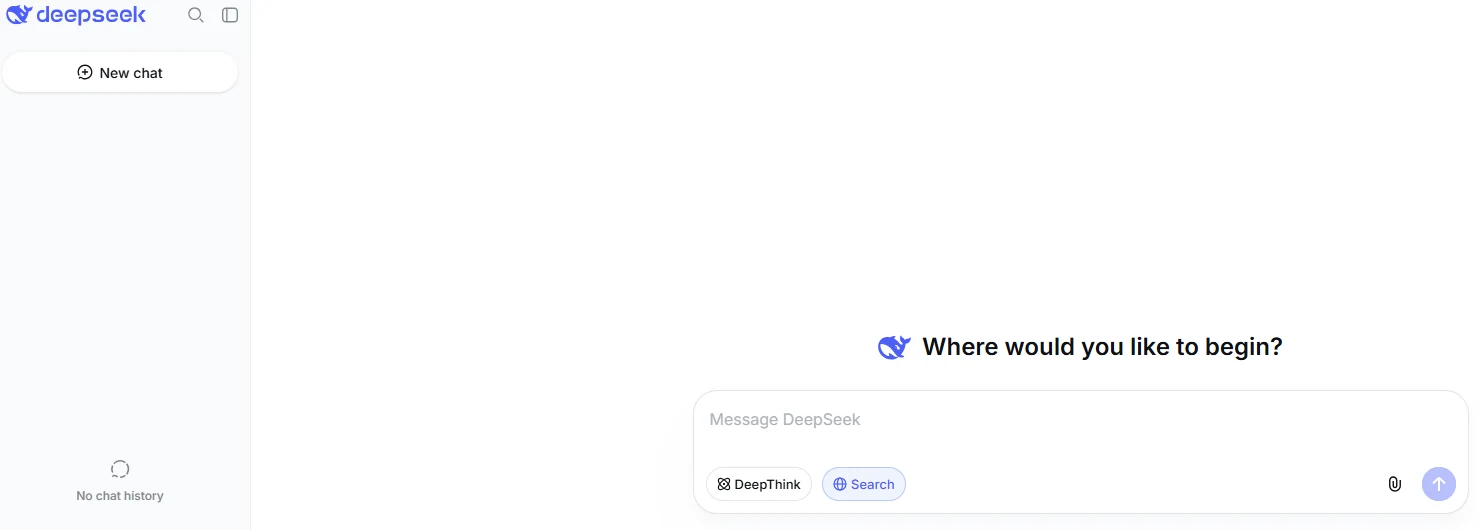
Go to chat.deepseek.com. Sign in if the service requests it, then start a new conversation. Beginning with an empty chat reduces the chance that instructions or documents from an earlier task will affect the analysis.
Confirm that you are using the official DeepSeek domain. A third-party tool that offers a DeepSeek model may use different upload limits, billing rules, data practices, and document-processing methods.
2. Attach the PDF
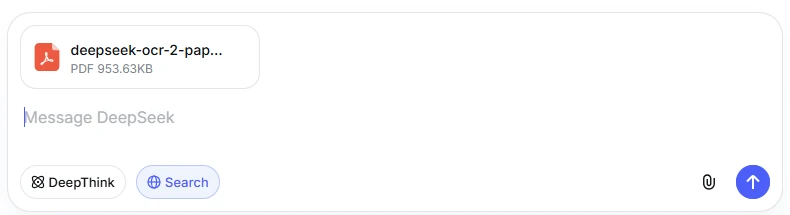
Select the current attachment or file-upload control beside the message box, choose the PDF from your device, and allow the upload to complete. The precise icon or label may differ between the web interface and mobile app.
Before sending your question, check that the correct filename appears in the conversation and that the interface is no longer showing an unfinished upload or processing state. A visible attachment confirms that the interface accepted the file; it does not prove that every page was extracted correctly.
3. Confirm that DeepSeek can access the document
Do not begin with “Summarize this PDF.” First send a diagnostic prompt that gives you something concrete to verify:
Before analyzing this PDF, identify:

1. The visible document title.
2. The author or organization, if stated.
3. The major section headings or table-of-contents entries you can read.
4. The first and last PDF pages for which you can identify content.
5. Whether the document appears to contain selectable text, scanned page images, or a mixture.

Do not summarize the document yet. If a detail is unavailable or unreadable, say so instead of guessing.
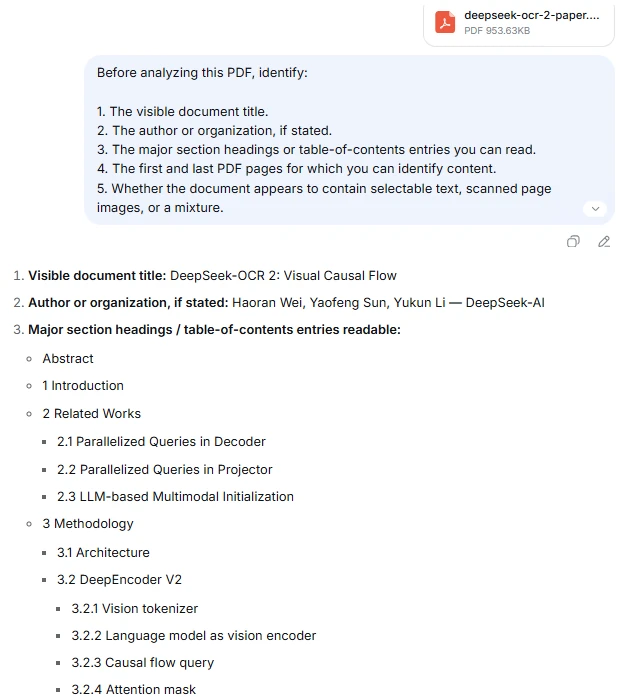
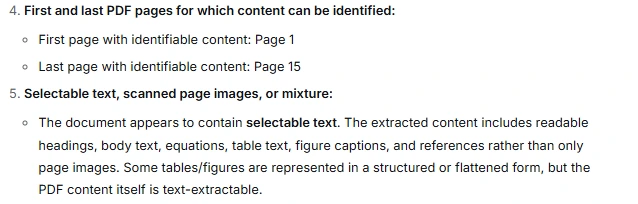
Compare the response with the actual PDF. Check the title, author, headings, and page range yourself. If DeepSeek misidentifies these basic details, fix the file or narrow the task before relying on a full summary.
This test still does not prove that DeepSeek successfully processed every table, footnote, appendix, diagram, or page. It only establishes a more useful starting point than assuming the entire document was understood because the upload succeeded.
4. Ask one specific document-grounded question
Start with a question whose answer you can check in the PDF. Require supporting evidence and tell DeepSeek what to do when the information is absent:
According to the uploaded PDF, what is the document's main conclusion?

Give:
- A concise answer.
- The section heading that supports it.
- The PDF page index.
- The page number printed inside the document, if different.
- One short supporting quotation.

If the document does not state a clear conclusion, write: "No explicit conclusion found in the uploaded PDF." Do not use outside knowledge.
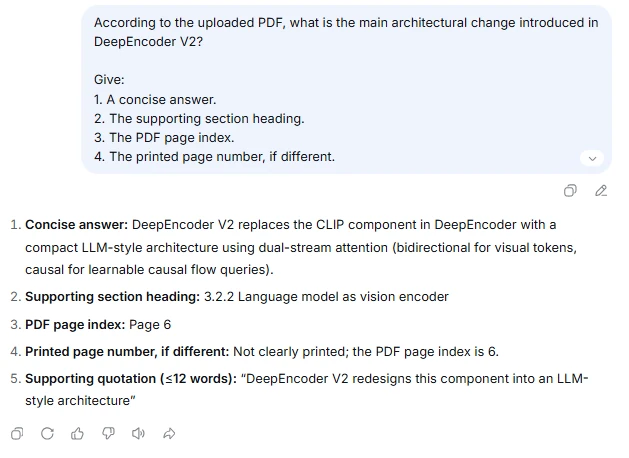
Specifying “according to the uploaded PDF” helps define the source, but it does not guarantee compliance. Open the cited page and confirm that the section and quotation support the answer.
5. Continue with narrower follow-up questions
Once the first answer is accurate, continue in the same conversation with section-specific questions. Narrow prompts are easier to verify than a request to analyze every aspect of a long document at once.
For example, ask about the methodology before asking whether the conclusions are justified, or extract the source values from a table before requesting a calculation based on them.
Prompt templates for common PDF tasks
Replace the text in brackets with the topic, section, or metric relevant to your document.
Create a grounded summary
Summarize the uploaded PDF's purpose, main argument, major findings, and conclusion.

For every major point:
- Cite the PDF page index and section heading.
- Distinguish statements made by the document from your own inference.
- Preserve important conditions and exceptions.
- Write "Not stated" when the document does not provide the information.

Do not use outside sources.
Find a specific fact
According to this PDF, what does it say about [topic]?

Provide:
1. A direct answer.
2. The shortest relevant supporting quotation.
3. The section heading.
4. The PDF page index and printed page number, if different.

If the document does not answer the question, write: "Not found in the uploaded PDF." Do not infer an answer from general knowledge.
Extract numerical data
Extract all values related to [metric] from this PDF.

Return a table with:
- Value
- Unit
- Time period or category
- Row or chart label
- Source filename
- PDF page index
- Printed page number
- Relevant footnote or qualification

Preserve the original units. Use "Unreadable" or "Not stated" rather than guessing. Do not calculate totals until after listing the source values.
Review a research paper
Review this research paper using only the uploaded PDF.

Identify:
- Research question
- Study design or method
- Sample, participants, or dataset
- Main results
- Limitations stated by the authors
- Conclusion

Cite the relevant PDF page for each item. Separate the authors' statements from your interpretation, and do not invent missing methodological details.
Create study notes
Create study notes from this PDF.

Include:
- Key concepts
- Definitions
- Important examples
- Relationships between the main ideas
- Five review questions with answers

Keep every factual statement grounded in the PDF and cite its page. Mark any interpretation clearly.
Text-based, scanned, and complex PDFs behave differently
| PDF type | What it contains | Recommended approach |
|---|---|---|
| Text-based PDF | Selectable, searchable text | Upload directly, run the diagnostic prompt, and verify citations and quotations. |
| Scanned or image-only PDF | Photographs or scans of pages without a reliable text layer | Test a known page first. If extraction fails, run OCR on an authorized copy or upload a clear image of the relevant page. |
| Mixed PDF | Selectable text plus scanned pages, charts, forms, or appendices | Verify text sections and visual sections separately instead of assuming one processing method covered both. |
| Complex-layout PDF | Multiple columns, tables, text boxes, formulas, or dense footnotes | Ask for small sections at a time and compare the extracted reading order with the page. |
| Password-protected PDF | Opening, copying, or extraction restrictions | Remove protection only when you are authorized, or obtain an accessible copy from the owner. |
| Corrupt PDF | A malformed or damaged file that may not open consistently | Open it locally and export a fresh PDF before uploading again. |
The official app announcement describes the feature as file upload and text extraction. It does not promise error-free OCR for every scanned document. The current DeepSeek model family includes visual capabilities, but that alone does not establish that every embedded image inside every PDF is passed through the same visual-processing route in DeepSeek Chat.
What to do when a scanned PDF is unreadable
- Check whether you can select the text in your normal PDF viewer.
- Run OCR on a copy using a trusted tool available to you, then review the recognized text for errors.
- Export the relevant page as a clear PNG or JPEG when only one or two pages matter and DeepSeek Chat currently accepts image uploads.
- Upload the corrected document in a new conversation and repeat the diagnostic prompt.
Pay particular attention to names, dates, decimal points, mathematical symbols, and table values. OCR can produce readable sentences while still changing a critical number or character.
For a separate local OCR route, see our DeepSeek-OCR 2 guide. It requires its own setup and is not a mode you enable in DeepSeek Chat.
How to verify quotations and page citations
DeepSeek can generate a plausible page reference that is wrong. Treat every citation as a claim to inspect, not a mechanically verified link to the source.
PDFs can also have two numbering systems. The viewer may label the first file page as page 1, while the printed document begins with unnumbered cover pages and later displays page 1. Ask for both when accuracy matters:
For each supporting passage, provide:
- The PDF page index shown by the viewer.
- The page number printed on the document, if present.
- The section heading.
- A short exact quotation.

If the two page-number systems differ, state both explicitly.
Open the cited page and confirm the wording, nearby context, footnotes, and qualifications. A short quotation can verify a claim; reproducing large portions of a copyrighted document is usually unnecessary.
How to analyze tables, charts, formulas, and diagrams
Document extraction may lose layout relationships. A table can become a sequence of disconnected words and numbers, while a multi-column page can be read in the wrong order. Handle visual elements in two stages: transcription first, interpretation second.
For tables
Transcribe the table on PDF page [number] before analyzing it.

Preserve:
- Table title
- Column headers
- Row labels
- Values
- Units
- Footnotes

Use "Unreadable" for any cell you cannot identify. Do not calculate or interpret the table until the transcription is complete.
For charts
Read the chart on PDF page [number].

List the title, axis labels, units, legend, and explicitly labeled values. Separate exact labeled values from visual estimates. Do not invent precise values for unlabeled points or bars.
For formulas
First transcribe the formula on PDF page [number] exactly as shown and define each symbol only when the PDF defines it. Then explain the formula in plain English. Mark any unreadable symbol instead of replacing it with a guess.
Compare every symbol with the original page. Subscripts, superscripts, negative signs, and Greek letters are common sources of extraction errors.
How to work with a long PDF
DeepSeek has described a large context window across its official services, including a 1-million-token context standard. That figure must not be converted into a guaranteed PDF page count. Pages vary greatly in text density, images, tables, language, and extraction quality, and the conversation history also consumes context.
The public consumer documentation checked for this guide did not provide a dependable universal PDF size, page-count, or file-count limit. If your interface displays a limit or rejection message, treat the wording shown in your account and product surface as the relevant rule.
For a long document, use this workflow:
- Ask for the document title, table of contents, and major section boundaries.
- Select the section relevant to your question.
- Ask a narrow question and require page evidence.
- Verify the answer before moving to the next section.
- Split the PDF into logical chapters only if the full document produces incomplete or confused answers.
Split by meaningful sections, such as chapters or appendices, rather than an arbitrary number of pages. Preserve the cover, title, and section names so that the resulting files remain identifiable.
How to compare multiple PDFs
If the current interface accepts multiple attachments, give each PDF a descriptive filename before uploading it. Then verify that DeepSeek can identify every file independently:
List every uploaded PDF you can access. For each file, provide its filename, visible title, author or organization, and a one-sentence description. Do not compare the documents yet. If a file is unavailable, identify it.
After checking the list, use a comparison prompt that keeps the sources separate:
Compare the uploaded PDFs only.

For every claim:
- Identify the source filename.
- Cite the PDF page and section.
- Use separate columns for each document.
- State whether the documents agree, conflict, or address different conditions.
- Do not combine a statement across files unless both documents support it.
If the response mixes sources, analyze one PDF at a time and combine only the verified notes afterward.
Can DeepSeek read a PDF from a link?
Direct file upload is the more dependable route for document analysis. The official public sources reviewed for this guide did not clearly confirm that pasting any PDF URL into DeepSeek Chat causes the complete file to be downloaded and processed.
A search result about a PDF is not evidence that DeepSeek read the full document. Links from Google Drive, Dropbox, SharePoint, or another private service may also require authentication or cookies unavailable to the chat service.
When the document matters, download an authorized copy, inspect it locally, and upload the file directly. Do not make a confidential document public merely to create an accessible link.
Troubleshoot PDF uploads and inaccurate answers
| Problem | What to check | Safe next action |
|---|---|---|
| The attachment control is missing | Official domain, account state, current conversation, and app version | Sign in if prompted, start a new chat, update the official app, or try the official web interface. The feature may differ by product surface or account. |
| The PDF is rejected | Whether it opens locally, is password-protected, is corrupt, or exceeds a limit shown by the interface | Export a fresh PDF or remove protection only when authorized. Follow the exact limit shown in your interface rather than an unofficial number. |
| Processing does not finish | Network connection, file integrity, and document complexity | Retry once in a new chat. If the problem continues, export a smaller logical section and check current service notices. |
| The answer is unrelated to the PDF | Whether the attachment is visible and whether DeepSeek can identify its title and headings | Send the diagnostic prompt. Reattach the file in a new chat if basic document details are wrong. |
| A scanned PDF yields little text | Whether the pages contain a selectable text layer | Run OCR on an authorized copy or upload a clear image of the relevant page when image input is available. |
| Tables or formulas are distorted | Reading order, units, headers, footnotes, and symbols | Analyze the relevant page separately and request transcription before interpretation. |
| Page citations are wrong | Difference between the viewer’s page index and printed page labels | Request both numbering systems and confirm the quotation directly in the PDF. |
| A long PDF receives incomplete coverage | Whether the question spans too many unrelated sections | Start with the table of contents, ask section-specific questions, or split the PDF by logical chapter. |
| Facts from multiple PDFs are mixed | Filenames and source attribution in the response | Require filename and page for every claim, or analyze each file separately. |
A successful upload and a fluent answer are separate from an accurate document analysis. When DeepSeek gives the wrong figure or quotation, changing the file, prompt, or scope is more useful than repeatedly asking it whether it is certain.
Privacy considerations for uploaded PDFs
A PDF uploaded to DeepSeek Chat is sent to a hosted service; it is not processed solely on your device. DeepSeek’s Privacy Policy states that user input can include uploaded files and describes using personal data to provide, maintain, develop, and improve its services and technology.
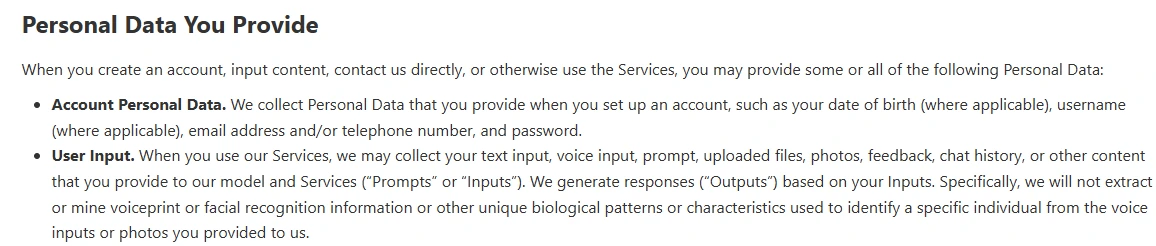
The policy also says retention periods vary according to the type and sensitivity of the data, the processing purpose, and legal requirements. It describes keeping account-related input while an account exists in some circumstances and retaining information where necessary for legal, contractual, security, or business purposes.
Review the privacy controls available in your account before uploading a document. Opting out of model training, deleting visible chat history, deleting an account, and submitting a privacy request are different actions. Do not assume that one of them automatically performs all the others or immediately removes every retained copy.
For a broader data-handling review before uploading sensitive files, see our DeepSeek privacy and safety guide.
For confidential work, client documents, regulated records, or trade secrets, use only a service and workflow approved by the responsible organization. Redacting a name may be insufficient when other details can still identify a person or organization.
A final verification checklist for each PDF answer
- Does the response identify the correct document and section?
- Do the cited pages actually contain the claimed information?
- Are names, dates, values, units, and signs copied correctly?
- Were footnotes, exceptions, and qualifying language preserved?
- Are document statements clearly separated from DeepSeek’s inference?
- Does “Not found” replace unsupported guessing?
- Have calculations been checked against the extracted source values?
- Was the file appropriate to share with a hosted AI service?
This workflow turns DeepSeek Chat from a general summarizer into a more auditable PDF-reading assistant: verify document access first, ask narrow questions, require source evidence, and confirm important details in the original file.